Access & Manage Projects in Biostat Prime
Open
Import data from a wide range of formats from user’s PC/Laptop supporting various formats including;
- Formats Supported
CSV,DAT,Excel,RData,SAS,SPSS,STSTA,PSV,TSV,CSVY,ZSAV,XPT,RDA,RDS,DBF,ARFF,FEATHER,FST,JSON,MAT,ODS,HTML,XML,YML,PARQUET,PZFX,CSV.GZ,TEXT,BioStat,R Script.
Load Dataset
Loads the datasets that are internal to BioStat Prime, along with it is the feature of installing the associated R packages.
In order to load a dataset, user needs to do the following.
- Steps
Select the dataset and R package from the dropdown in the load dataset dialog -> execute the dialog.
If the user does not see a dataset in the dropdown, the package selected does not contain the dataset.
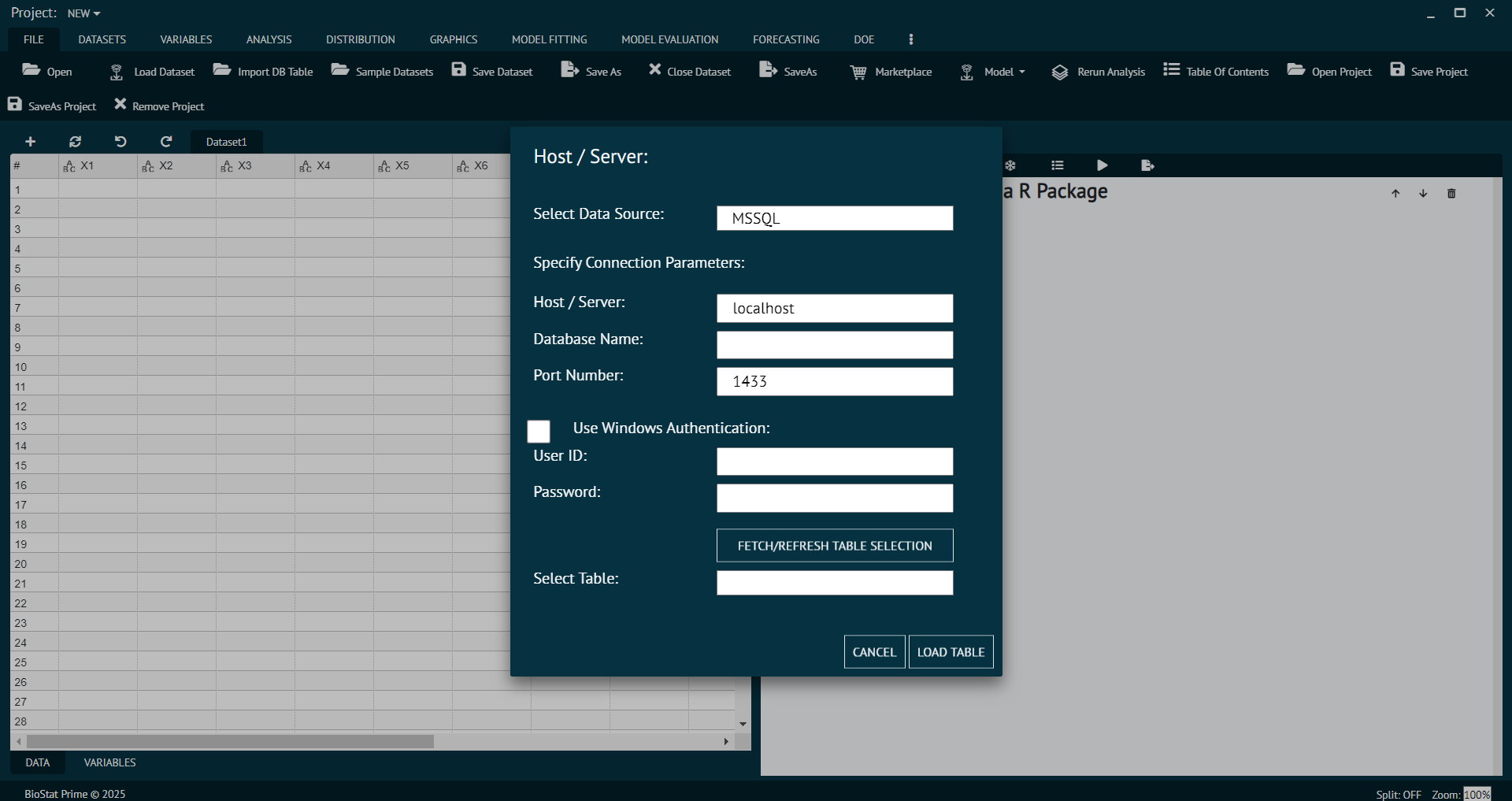
Import DB table
Sample Datasets
BioStat Prime includes a collection of function-specific sample datasets that users can utilize to explore features and perform sample calculations. These datasets serve as practical examples to help users better understand the software’s analytical capabilities.
All imported datasets appear in the data grid, ready for manipulation and analysis.
Save Dataset
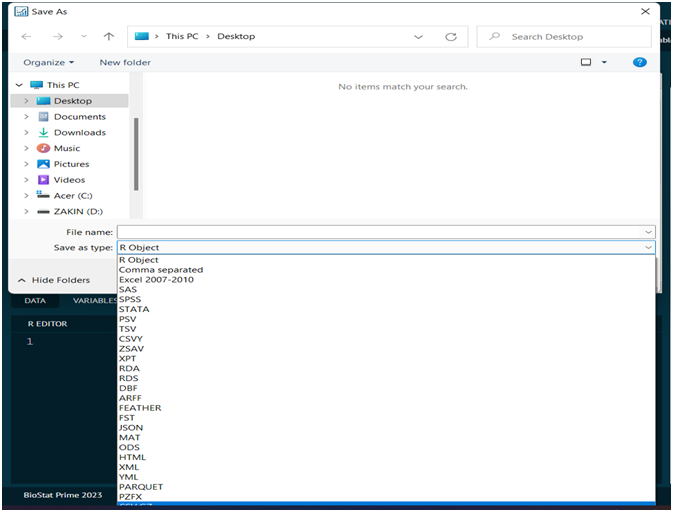
Saves the dataset the user had worked on into the following formats.
- Formats Supported
R Object,Comma separated,Excel 2007-2010,SAS, SPSS,STATA,PSV,TSV,CSVY,ZSAV,XPT,RDA,RDS,DBF,ARFF,FEATHER,FST,JSON,MAT,ODS,HTML,XML,YML,PARQUET,PZFX.
The user can decide as per the requirement which format to choose. Save seeks to update the current content of the previously saved file,
Save As
Save As aims to create a new folder or save an existing file to a new location with the same name or a different title. Formats used for save/save As the dataset are as follows;
- Formats Supported
R Object,Comma separated,Excel 2007-2010,SAS,SPSS,STATA,PSV,TSV,CSVY,ZSAV,XPT,RDA,RDS,DBF,ARFF,FEATHER,FST,JSON,MAT,ODS,HTML,XML,YML,PARQUET,PZFX.
Close Dataset
Closes the dataset that user had been working on.
Export output
Export output exports the output to be saved in user’s system. It is used to save the output of the analysis by exporting it to the PC/Laptop with file type as R markdown, as HTML or as BioStat.
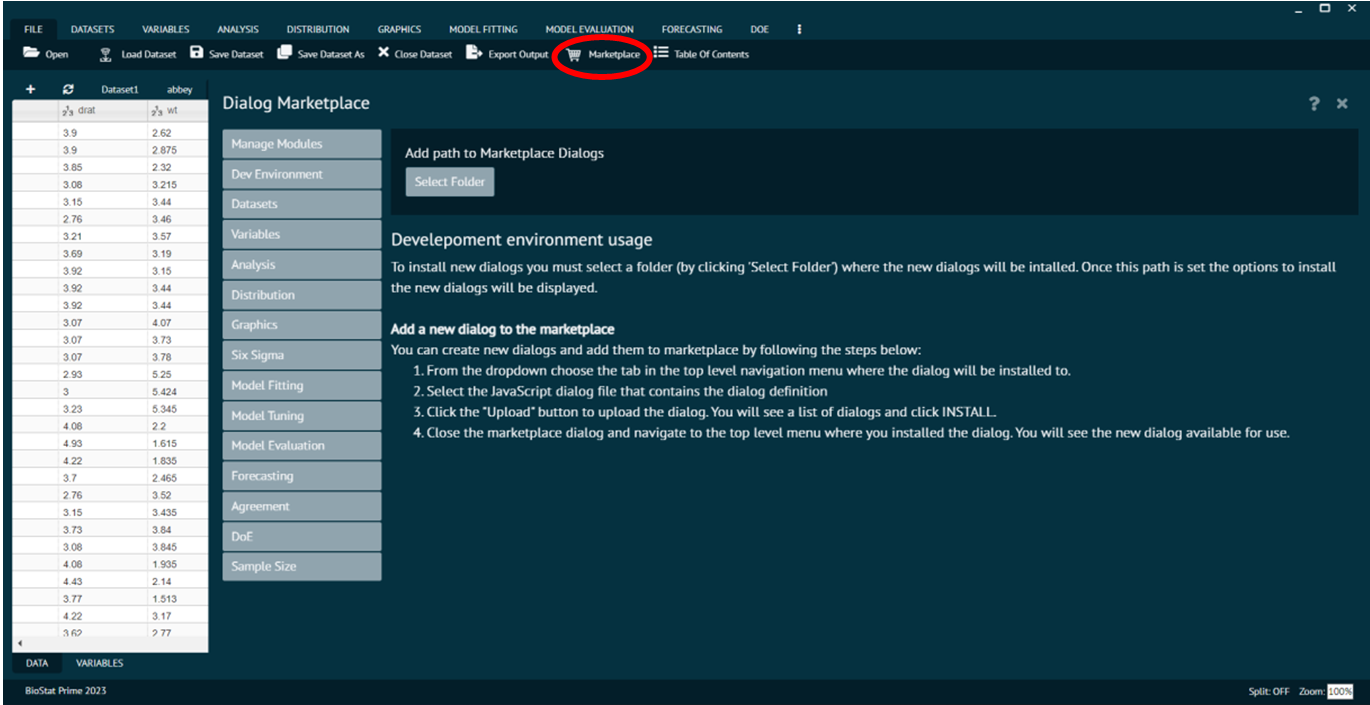
Marketplace
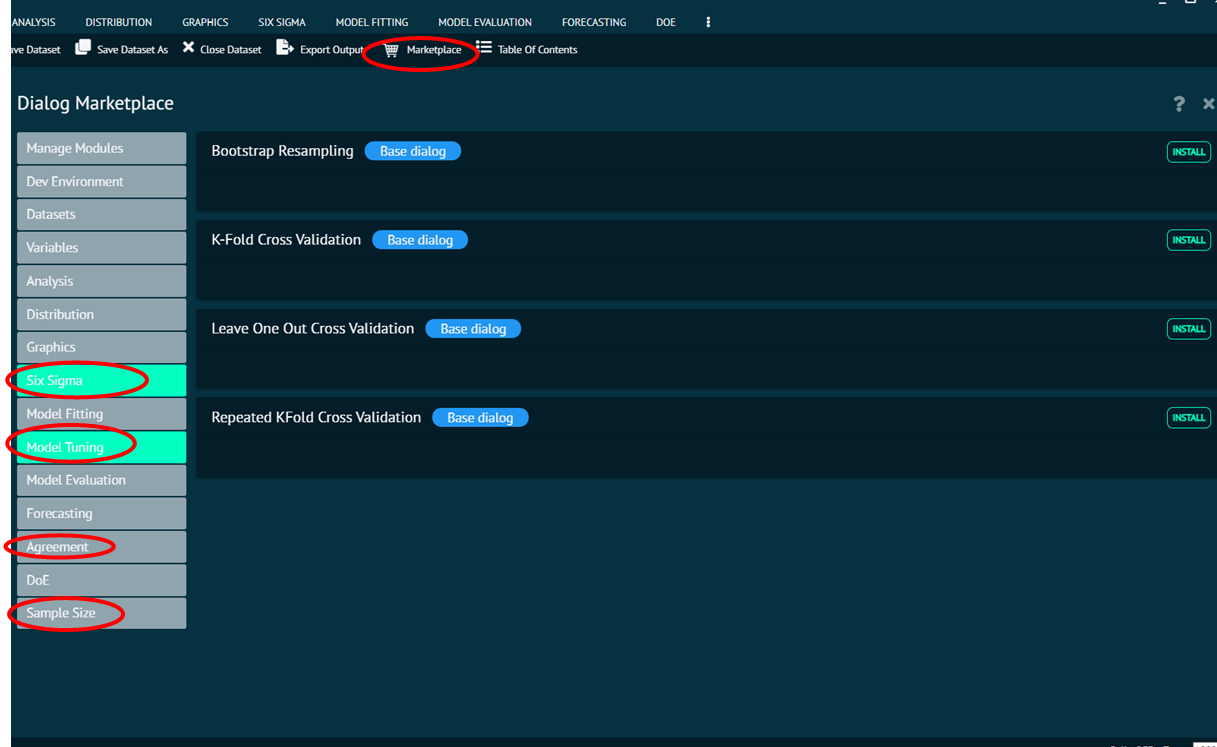
Marketplace is one of the most popular feature of BioStat Prime as it enables the user to customise the application as per requirements and expands its functionality.
Marketplace is a free store for adding R libraries and functions to BioStat Prime to newer areas of statistics.
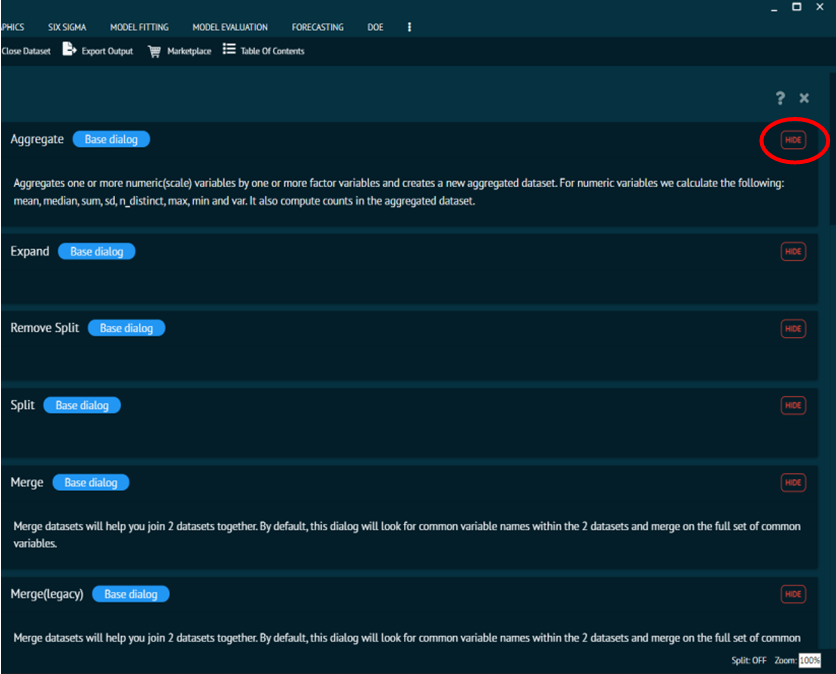
It Installs or hides R functions and packages. User can install various new libraries and dialogs like Agreement, Model Fitting, Sample Size and the associated libraries with them.
Model
Can load R objects saved in the current or any earlier format. R Model objects saved to the file selected will be loaded. ALL R objects saved to the selected file will be loaded. If objects with the same name exist in the R global environment, they will be overwritten. A message confirming the models built with the application that were loaded will be displayed. User has to click the execute button (the horizontal triangle button) to load R objects saved to the selected file.
Save Model
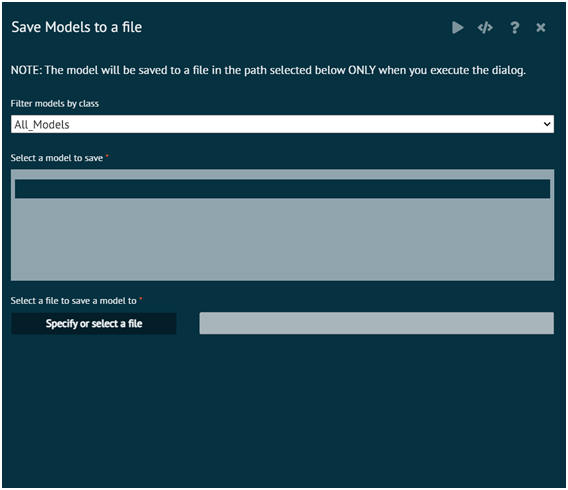
Models selected will be saved to a file in the R data format (.RData extension) User can specify a new file by entering a name or selecting an existing file If user selects an existing file, it will be overwritten. User has to click the execute button (the horizontal triangle button) to run the dialog and save the objects to a file.
Rerun Analysis
User can save the analysis steps in a .bmd file which other users can load it into BioStat Prime and run the same analysis steps on different datasets through the mapping of datasets as shown below. An organization can standardize analysis steps for a dataset or a set of datasets.
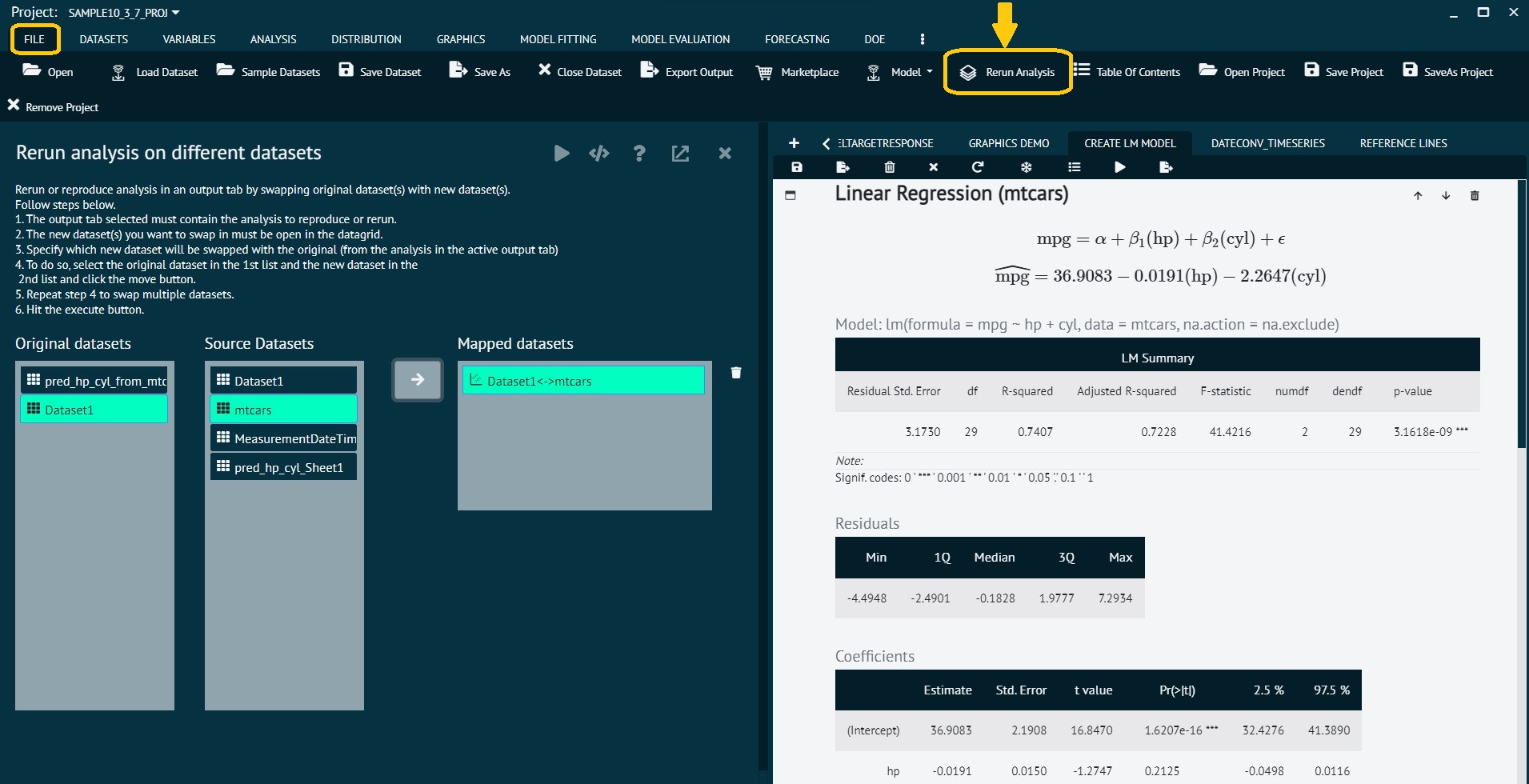
Rerun or reproduce analysis in an output tab by swapping original dataset(s) with new dataset(s).
Follow steps below.
The output tab selected must contain the analysis to reproduce or rerun.
The new dataset(s) user wants to swap in must be open in the datagrid.
Specify which new dataset will be swapped with the original (from the analysis in the active output tab)
To do so, select the original dataset in the 1st list and the new dataset in the 2nd list and click the move button.
Repeat step 4 to swap multiple datasets.
Hit the execute button.
Open Project
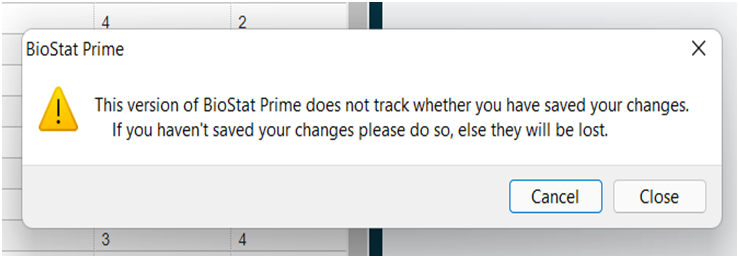
Projects offer a transparent and complete snapshot of your workflow, supporting reproducible research and analysis. Open Project loads a previously saved project to continue analysis or review prior results. But before opening a new projects it asks user if they want to save the previous work or not by showing the save dialog box.
Save Project
Saves the project in the desired location. Before user opens or switches to another project (or exit the application) user should save current work to a named project if it is 'NEW' or update the existing named project with the changes.
SaveAs Project
SaveAs Project aims to create a new folder or save an existing file to a new location with the same name or a different title.
Remove Project
The projects opened or saved are stored in the dropdown list. Removes option removes the project from the dropdown.
- Cancel
- Don't Save