Troubleshooting Guide
This section lists the most common issues users face while using BioStat Prime, along with their causes and step-by-step solutions.
Installation & Startup Issues
1. Missing system dependencies
On macOS, BioStat Prime depends on XQuartz, which is required for the proper execution of R. If XQuartz is not present on the system, the application may fail to launch and display an error at startup. Ensure that XQuartz is installed and correctly configured before launching the application.
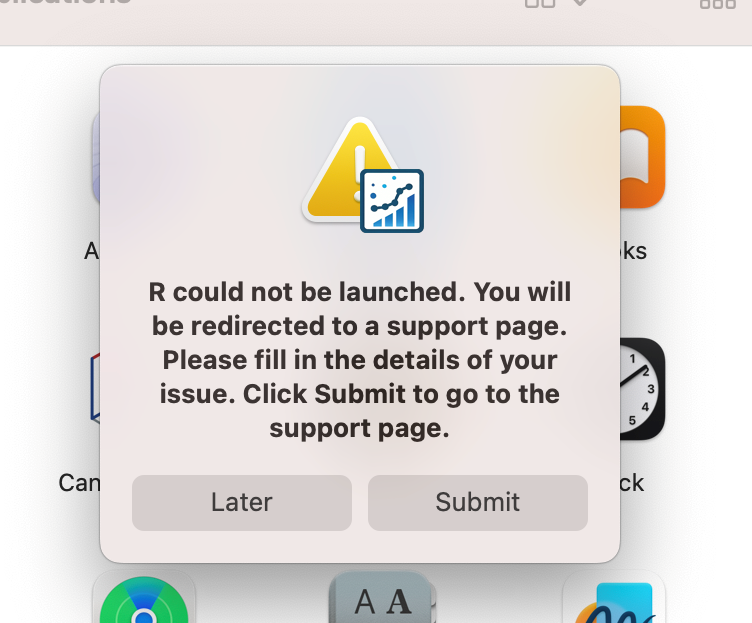
Solution
Install XQuartz from https://www.xquartz.org
Then reinstall the application following the steps given in
Installation Section
Installing XQuartz on macOS
XQuartz is required for BioStat Prime to run correctly on macOS. Follow the steps below to install it.
Step 1: Download XQuartz
Open your web browser.
Visit the official XQuartz website:
https://www.xquartz.orgClick on Download XQuartz.
Step 2: Install XQuartz
Open the downloaded
.dmgfile.Double-click the XQuartz.pkg installer.
Follow the on-screen instructions to complete the installation.
Step 3: Log Out and Log Back In After installation, macOS may prompt you to log out and log back in.
This step is required to ensure XQuartz is properly configured.
Step 4: Verify Installation
Open Applications → Utilities → XQuartz.
Launch XQuartz to confirm it opens without errors.
Step 5: Launch BioStat Prime Once XQuartz is installed and verified, relaunch BioStat Prime.
The application should now start without any dependency-related errors.
2. Antivirus blocking the application
On Windows, after the application installation is completed and before it launches for the first time, a Windows Defender Firewall prompt may appear asking the user to allow access to certain blocked features.
This behavior is normal and expected. Users should allow access when prompted to ensure the application functions correctly.
Granting permission is important for the proper operation of the software.
3. Port 3000 Already in use
This error occurs when port 3000 is already being used by another process, so the application cannot start properly.
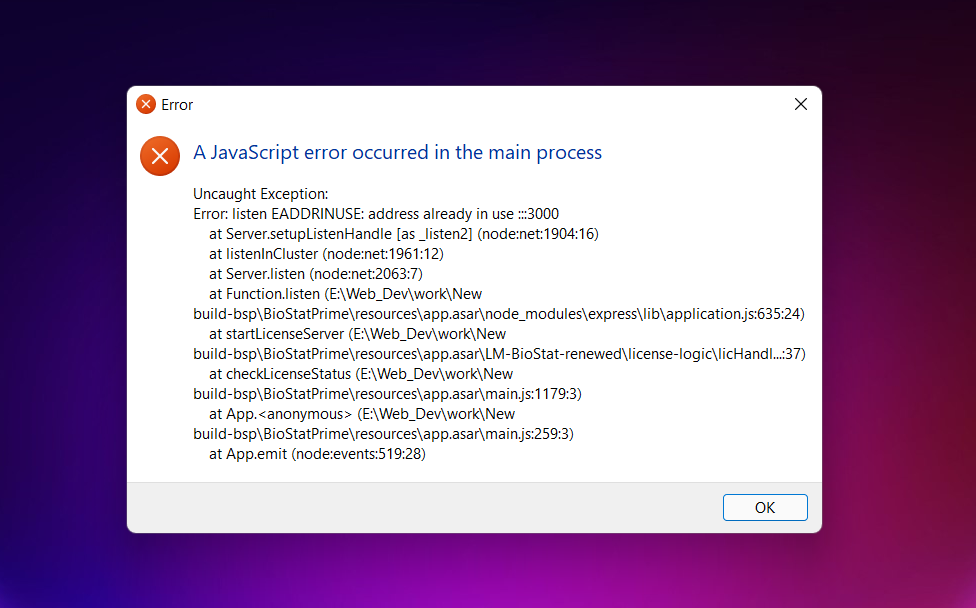
This usually happens if:
Another instance of BioStat Prime is already running
A previous session crashed and did not release the port
Another application (for example, a development server or background service) is already using port 3000
Opened Biostat Prime multiple times simultaneously.
How to fix it
Option 1: Restart your system (recommended)
Restarting your computer will automatically free the port.
After restart, launch BioStat Prime again.
Option 2: Close other running instances
Make sure BioStat Prime is not already running in the background.
Close all open instances and try launching the app again.
How to avoid this issue in the future
Always close BioStat Prime properly before shutting down your system.
Avoid running multiple instances of the application at the same time.
Ensure previous crashes are resolved before restarting the app.
License & Activation Issues
License activation failed
Symptoms
Error message: "Activation failed"
License is rejected/expired
Possible causes
No internet connection
License already activated on another device
Incorrect license credentials
License is expired and user is trying to activate without renewal.
Solution
Ensure you are connected to the internet.
Verify that the license is not active on another device.
Re-enter your license details carefully.
License expired message after renewal
Possible causes
License status not refreshed
Offline system
Solution
Connect to the internet
Restart BioStat Prime to refresh license status
Need More Help?
If your issue is not listed here, please contact our support team at support@biostatprime.com with:
Error message or screenshot
Operating system details
Steps to reproduce the issue